
Galarux Gantt User Guide
Galarux Gantt is an advanced extension for Microsoft Dynamics 365 Business Central that enables visual project planning through Gantt charts. This tool is designed to integrate seamlessly with the standard Business Central Projects module.
Main features
- Visual planning: Create and manage projects with intuitive Gantt charts
- Native integration: Fully integrated with the BC Projects module
- Resource management: Assign and manage resources efficiently
- Dependencies: Define relationships between tasks for optimized workflow
- Change audit: Forensic log of every change applied from the Gantt, with reproducible snapshots
Installation
Installing Galarux Gantt is a simple process that is done from AppSource.
Installation from AppSource
2. Search for "Galarux Gantt" in the marketplace
3. Click "Get now" and follow the instructions
4. The extension will be installed automatically in your environment
Initial configuration
Once the extension is installed from AppSource, initial configuration is required for users to access Galarux Gantt.
License assignment
As a premium AppSource application, the tenant administrator must assign the acquired licenses to users who will use Galarux Gantt.
Assignment process
2. Go to "Licenses" in the navigation panel
3. Search for "Galarux Gantt" in the products list
4. Select users who need access
5. Assign the corresponding licenses
Ready to use!
Once licenses are assigned, users will enjoy:
- Complete access to Galarux Gantt from Business Central
- Creation and management of professional Gantt charts
- All advanced features of the extension
Parameters
From the Galarux Gantt Setup page you configure how the extension behaves according to your needs:
- Gantt language: English / Spanish
- Default time view: Day, Week, Month or Year (each user can still switch it during the session)
- End date calculation method: Standard, Based on Duration or End Date, applied as the default for projects that inherit it
- Bar colors: customize the project, task and planning line colors, or keep the default palette
- Change log (audit): enable or disable the forensic log of every change made from the Gantt
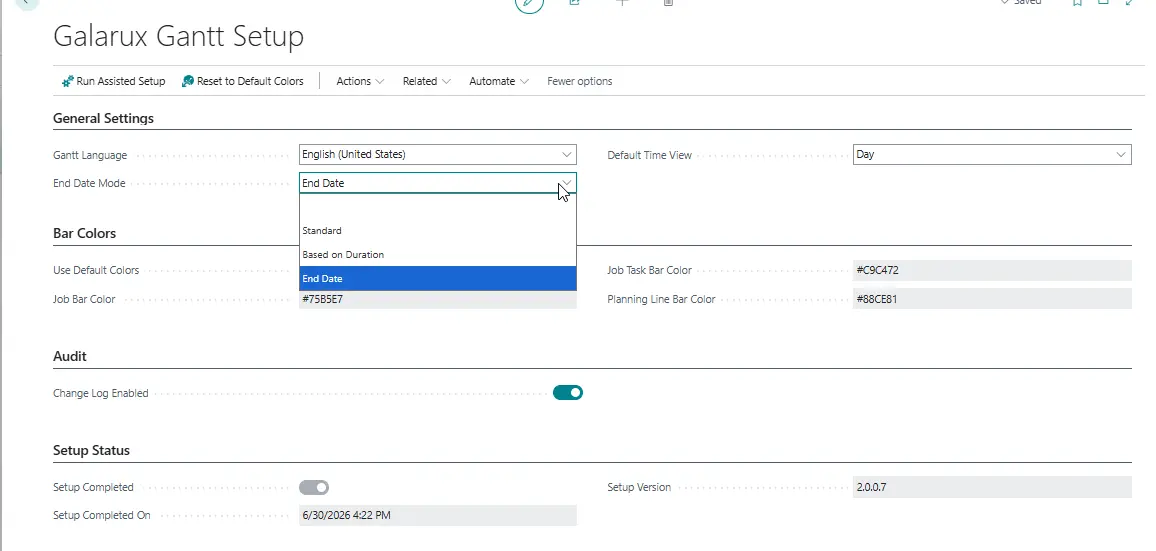
Assisted setup
You can use the Run Assisted Setup wizard to get Galarux Gantt configured in a few guided steps.
View diagrams
Galarux Gantt allows you to view Business Central projects in Gantt chart format automatically. Each project task is displayed as a bar in the chart, where the start date corresponds to the earliest date of the task's planning lines and the end date to the latest.
Access the Gantt chart
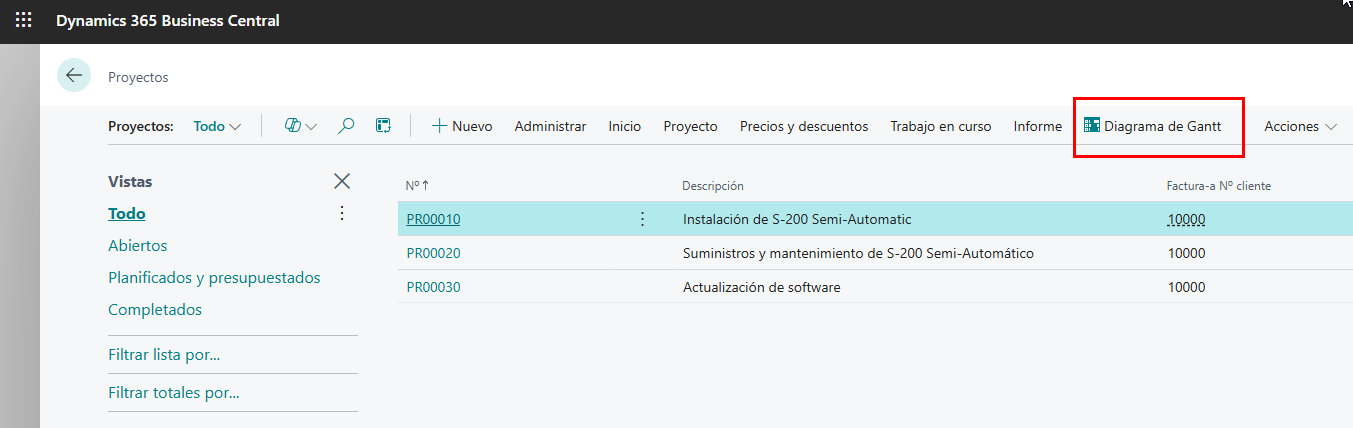
You can access the Gantt chart in two ways:
- From the project list, select the project and click Actions > Gantt
- From the project card, click Gantt
Manage tasks
Tasks are automatically generated from Business Central and edited directly on the chart. Every change is saved instantly to Business Central, which remains the source of truth.
Available editing features
- Visual editing by dragging elements in the chart
- Modify dates directly in the Gantt view
- Create and edit dependencies between tasks
- Resource assignment and reassignment
Resource management
- Visual resource assignment to tasks
- Workload view per resource or resource group
- Resource panel as numeric load (planned and available hours) or as a histogram with a capacity line
- Reassign resources across projects by dragging
- Every change is reflected instantly in Business Central
Change audit
Galarux Gantt forensically records every change made from the chart. You can reproduce any save and know what was changed, when and by whom.
- Snapshots: Every save batch is recorded as a reproducible snapshot.
- Change log: Review the detail of every change (task, date, dependency) on the Galarux Gantt audit page.
- Control: The audit can be enabled or disabled from the setup according to your storage or compliance needs.
Support
This section addresses the most common issues that may arise when using Galarux Gantt.
Common issues
1. Chart does not load
Solution:
- Verify you have permissions to access Galarux Gantt
- Clear browser cache
- Restart Business Central session
- Contact technical support if it persists
Contact technical support
If problems persist, contact our support team:
- Email: soporte@galarux.com